
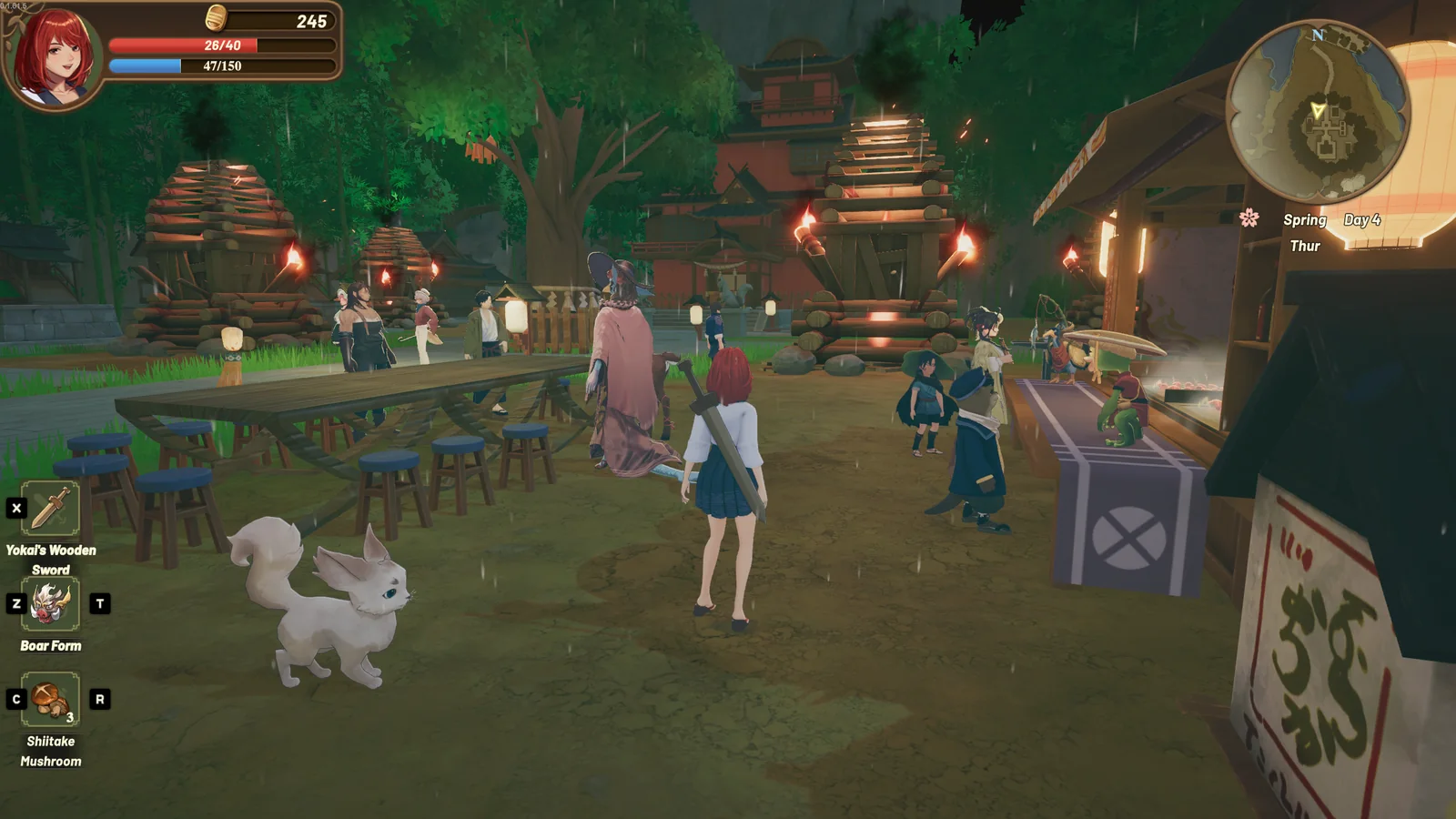
Steam currently marks Tales of Seikyu as Steam Deck Verified, as independently checked on July 13, 2026. Compatibility status can change as the game and Steam's review evolve, so check the current Steam compatibility badge on the store or in your Steam library when device status matters.
Treat the badge as the official status layer and individual experiences as device reports. A player report can help you test an issue, but it is not proof of a developer-confirmed bug.
Current Steam Deck badge
Valve can update compatibility results, so the live badge remains the final reference. An older Fireshine support answer said the game was playable but not yet Verified; that was Early Access-era guidance and is superseded by the current Steam result.
Verify before configuring
- Open the game's Steam page on the Deck and confirm that the Verified status and compatibility detail remain current.
- Check whether Steam notes input, text, launcher or performance considerations.
- Review the date of any community report and whether it clearly applies to version 1.0.
Begin with a clean baseline
Launch with current game files and default in-game settings before applying a long list of adjustments. Confirm that prompts match the input method you are using, and test menus, movement and text-heavy screens early. Change only one setting between tests so you can identify what helped.
Check readability as well as speed
Performance is only one part of handheld usability. Examine dialogue, inventory labels, button prompts and interface contrast at normal viewing distance. If the game exposes text or interface scaling, prefer a readable value even when it reduces how much information fits on screen.
Label reports correctly
When documenting behavior from a forum or personal test, use this label: Player-reported; not confirmed by the developer. Include the game state, device software state and steps that reproduced the behavior instead of turning one experience into a universal claim.